takvim
Yapay Zeka Giriş yapGiriş Ücretsiz başlaBaşla
What's new

What changed on takv.im

We write about new features and improvements here, including news for AI assistants (MCP).

New feature AI assistants (MCP)

Cover images for meeting types

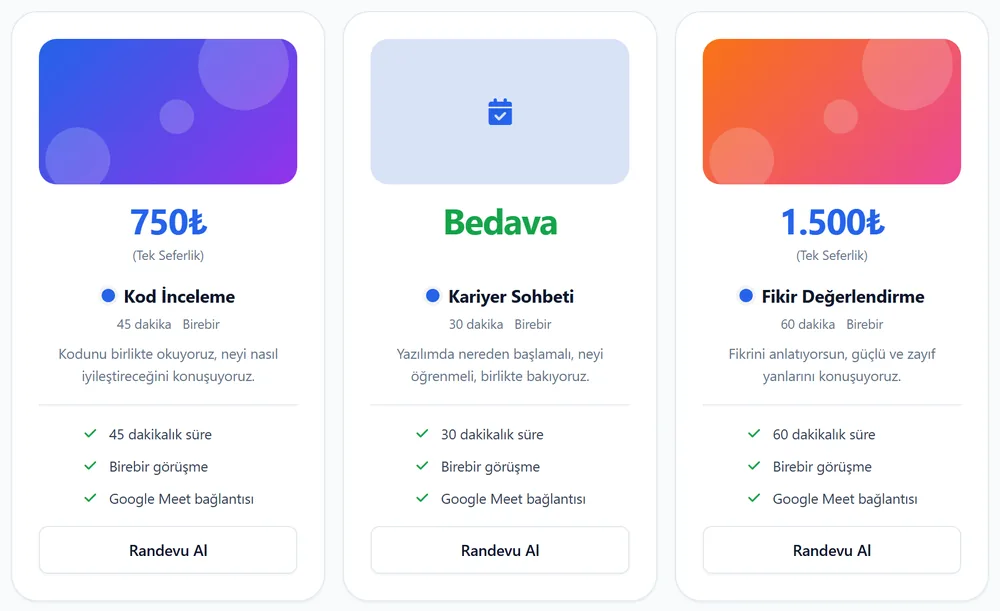
You can add an optional cover image to each meeting type. It shows at the top of the card on your profile and on the booking page.

  • Upload a JPG, PNG or WebP in the "Kapak resmi" (cover image) field while editing a meeting type. Up to 5 MB.
  • The image is resized and saved in a format that loads fast.
  • Your connected AI assistant can add and remove images too.
  • Visitors can report an image that is not appropriate. A reported image stays hidden until it is reviewed.
Three meeting type cards on a profile: two have a colorful cover image, the one without an image shows a light blue area with a calendar icon.

Go to your meeting types

New feature

What's new is now in English too

Pick Türkçe or English at the top of this page. All earlier updates were translated to English too.

Add a short part to the RSS address to get only the updates you want. If a month has many updates, you get all of them.

  • One month: yenilikler.xml?ay=2026-11&dil=en
  • A date range: yenilikler.xml?baslangic=2026-11-01&bitis=2026-11-15&dil=en
  • Search by word: yenilikler.xml?ara=category&dil=en

See the RSS addresses

New feature

Categories and ordering for meeting types

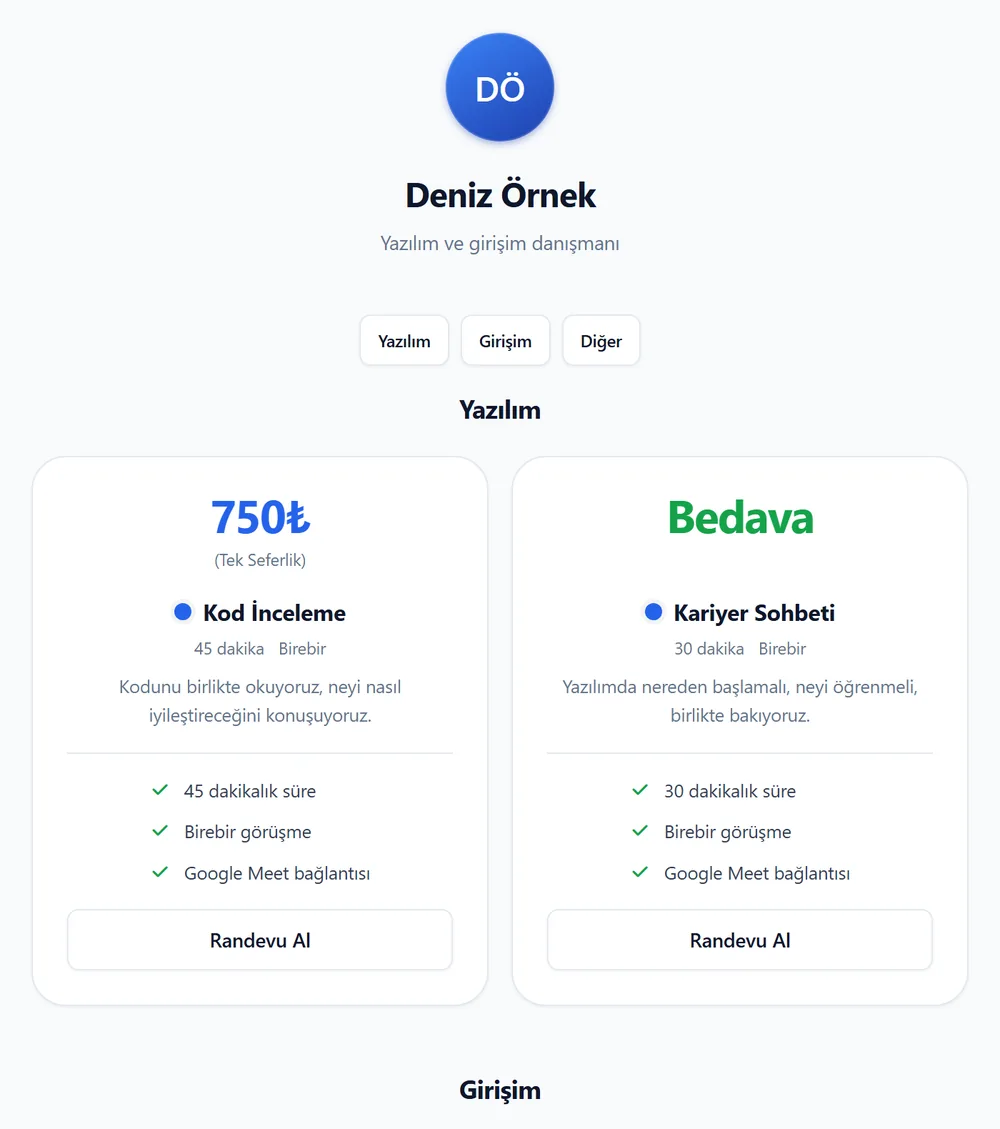
You can group your meeting types into categories. Your profile page is split into sections with category headings, and everything still shows on one page.

Each category has its own link: takv.im/yourusername#category. Share it and visitors land right on that section.

  • Add, edit or delete categories in the Categories tab on the Meeting Types page.
  • Write a short description for each category. It shows under the heading on your profile.
  • Choose a category while editing a meeting type.
  • Use the arrow buttons to change the order of categories and meeting types.
  • Deleting a category does not delete the meeting types in it.
A profile page with categories: links named Yazılım, Girişim and Diğer at the top, and two meeting type cards under the Yazılım heading.

Go to your categories

Developers New feature

Personal API key

Settings now has an API tab. Use a key to connect your own program or a tool to your account.

  • You name the key and choose its permissions.
  • The key is shown only once, right after you create it.
  • To delete a key, you have to type its name yourself.

Go to the API page

AI assistants (MCP) New feature

Connect takv.im to your AI assistant

You can connect assistants that support MCP, such as ChatGPT, Claude and Grok, to your takv.im account. Chat with the assistant to look at your customers and to change your profile, meeting types and availability.

  • You choose which permissions to give when you connect.
  • The assistant cannot delete customers, notes or bookings.
  • You can disconnect at any time from the Security section in Settings.
How to connect

RSS addresses
  • All updates in English: https://takv.im/yenilikler.xml?dil=en
  • One month: https://takv.im/yenilikler.xml?dil=en&ay=2026-11
  • One year: https://takv.im/yenilikler.xml?dil=en&yil=2026
  • One day: https://takv.im/yenilikler.xml?dil=en&tarih=2026-11-10
  • A date range: https://takv.im/yenilikler.xml?dil=en&baslangic=2026-11-01&bitis=2026-11-15
  • One topic (yeni, mcp, gelistirici, iyilestirme, gizlilik): https://takv.im/yenilikler.xml?dil=en&etiket=mcp
  • Search by word: https://takv.im/yenilikler.xml?dil=en&ara=category

Join parts with &. There is no limit: every matching update is included. The same parts also work in the address of this page.